A faster Lightroom culling workflow (and when to cull outside it)
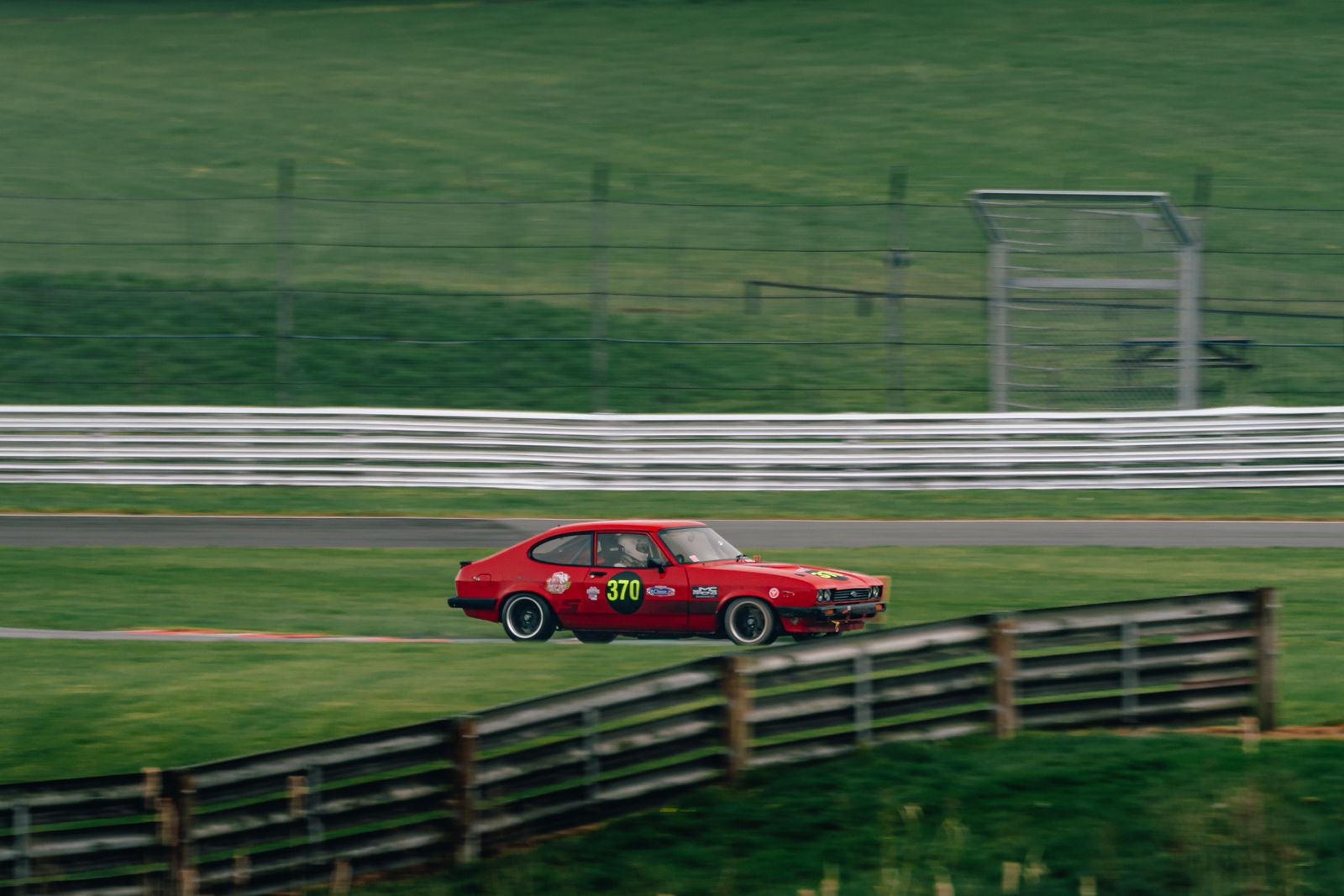
Lightroom is excellent at developing photographs and merely adequate at choosing them. That’s not really a criticism — it’s a catalogue and a raw developer, and culling is a side job. But if your shoots are big, the cull is where you lose your evening, and the standard advice of “just use flags” doesn’t address why it’s slow.
Why it feels slow
- Previews. Until Lightroom has rendered a preview at the size you're viewing, you're waiting on it. Zooming to 100% on an unrendered frame means a pause, and you need 100% to judge sharpness honestly.
- It shows you everything, flat. A timeline of two thousand frames gives you no help with the fact that frames 340 to 352 are the same car through the same corner. Grouping is left entirely to you.
- Comparing is deliberate work. Survey and Compare views are good, but you have to set them up per group. Across two hundred groups that's the whole problem.
Making Lightroom itself faster
- Build Standard previews on import, and let it finish. Import, walk away, make a coffee. Culling into a catalogue that's still rendering is the single biggest cause of the "Lightroom is slow" feeling.
- Cull in Library, never Develop. Develop loads the full raw pipeline per image. Library with rendered previews is a different experience entirely.
- Use flags, not stars, for the first pass. One decision: P or X. Stars invite you to grade quality on a five-point scale, which is a second, slower judgement you don't need yet.
- Turn on Caps Lock auto-advance. Flag and move on in one keystroke. It sounds trivial and it roughly halves a first pass.
- Filter to flagged, then refine. Get from two thousand to two hundred with one binary decision, then do the careful work on the smaller set.
- Keep Smart Previews if you work off a laptop. Culling from Smart Previews with the drive unplugged is much quicker, and your ratings sync back.
When to cull outside Lightroom
Roughly: when the number of frames is large and the proportion you’ll keep is small. A 300-frame portrait session keeping 60 is comfortable in Lightroom. A 2,000-frame trackday keeping 80 is not, because you spend the whole time doing comparison work Lightroom doesn’t assist with.
The two established alternatives are different in kind:
- Photo Mechanic for manual speed. It ingests and browses raw files faster than anything else and a lot of press and sport photographers cull entirely in it, then send selects onward. No AI, just raw speed. More on that comparison here.
- AI culling for the grouping and the first pass, then review in Lightroom. The tool collapses the near-duplicates and proposes the heroes; you approve or override; the selection lands back in your catalogue.
Getting selections back into Lightroom cleanly
Whatever you cull with, this is the join that has to work, or you’ve just moved the problem:
- XMP sidecars are the universal route. Ratings, flags and colour labels written next to the raw file, which Lightroom reads on import or on "Read Metadata from Files".
- Match on filename, and don't rename between tools until after the cull. Renaming mid-flow is how selections get orphaned.
- Decide once where the truth lives. If Lightroom is your catalogue, treat the culling tool as an input to it, not a parallel library. Two libraries of ratings that disagree is worse than a slow cull.
Where Vantage sits
It does the cull and the first grade, then writes out what Lightroom needs: selections as XMP sidecars against your original raw files, so your catalogue and your develop settings stay where they are. You keep Lightroom for developing, which it’s genuinely the best at, and stop using it for the comparison work it isn’t built for.
Try it on your biggest shoot
The bigger the card, the more obvious the difference. Free to start, Mac and Windows, in beta.
Download Vantage Compare the optionsCommon questions
How can I cull faster in Lightroom?
Build Standard previews on import and let them finish, cull in Library rather than Develop, use flags instead of stars for the first pass, and turn on Caps Lock so flagging auto-advances. Then filter to flagged and do the careful work on the smaller set.
Is Lightroom good for culling?
It's fine up to a few hundred frames. It struggles at scale because it shows you a flat timeline with no grouping of near-duplicates, and comparing has to be set up group by group.
How do I get culling selections back into Lightroom?
XMP sidecars are the universal route — ratings and flags written beside the raw files, which Lightroom reads on import or via Read Metadata from Files. Don't rename files between tools until after the cull.
Should I cull before or after importing to Lightroom?
If your shoots are large and your keep rate is low, cull first in a faster tool and import the selects. If they're modest, culling in Lightroom keeps everything in one place, which has its own value.